





Finding the Sensor Behind an Alert
Every alert names the sensor it came from. Here’s how to get from the name on the alert to the Temp Stick on the wall, and the pipe it’s watching.
Start with the name
Sensors are named when they’re set up, usually for where they were installed: “Loading Dock”, “Riser Room”, “Stairwell B”. You’ll find the name on the alert, beside its status, and in every text and email the alert sends.
If the name is a code like EXFS1A2B3C, the sensor was never given a name. That code is its sensor ID, printed on the label on the Temp Stick.
What to look for
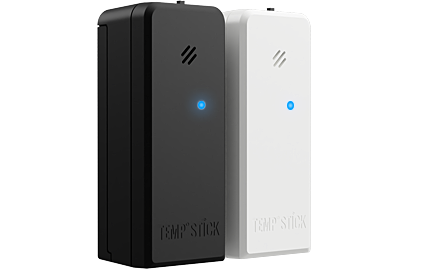
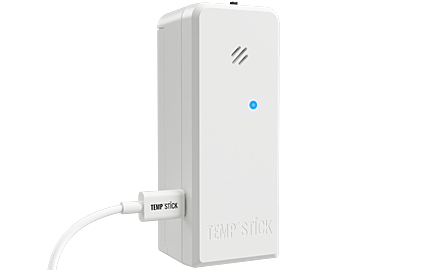
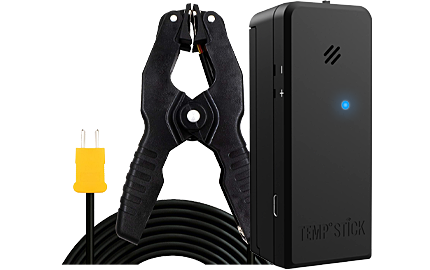
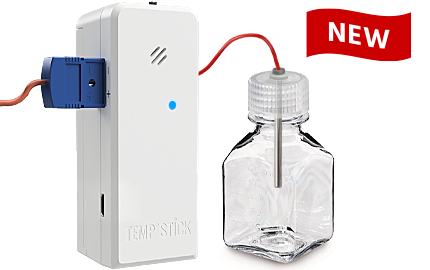
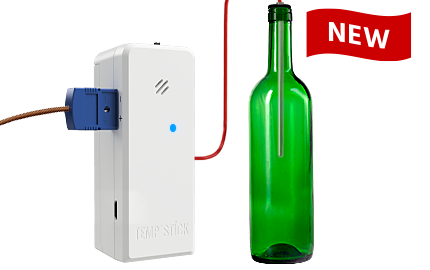
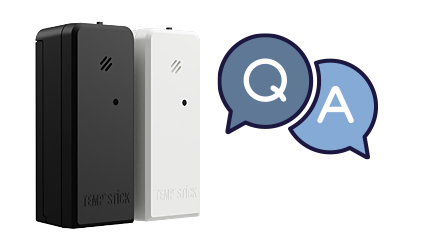
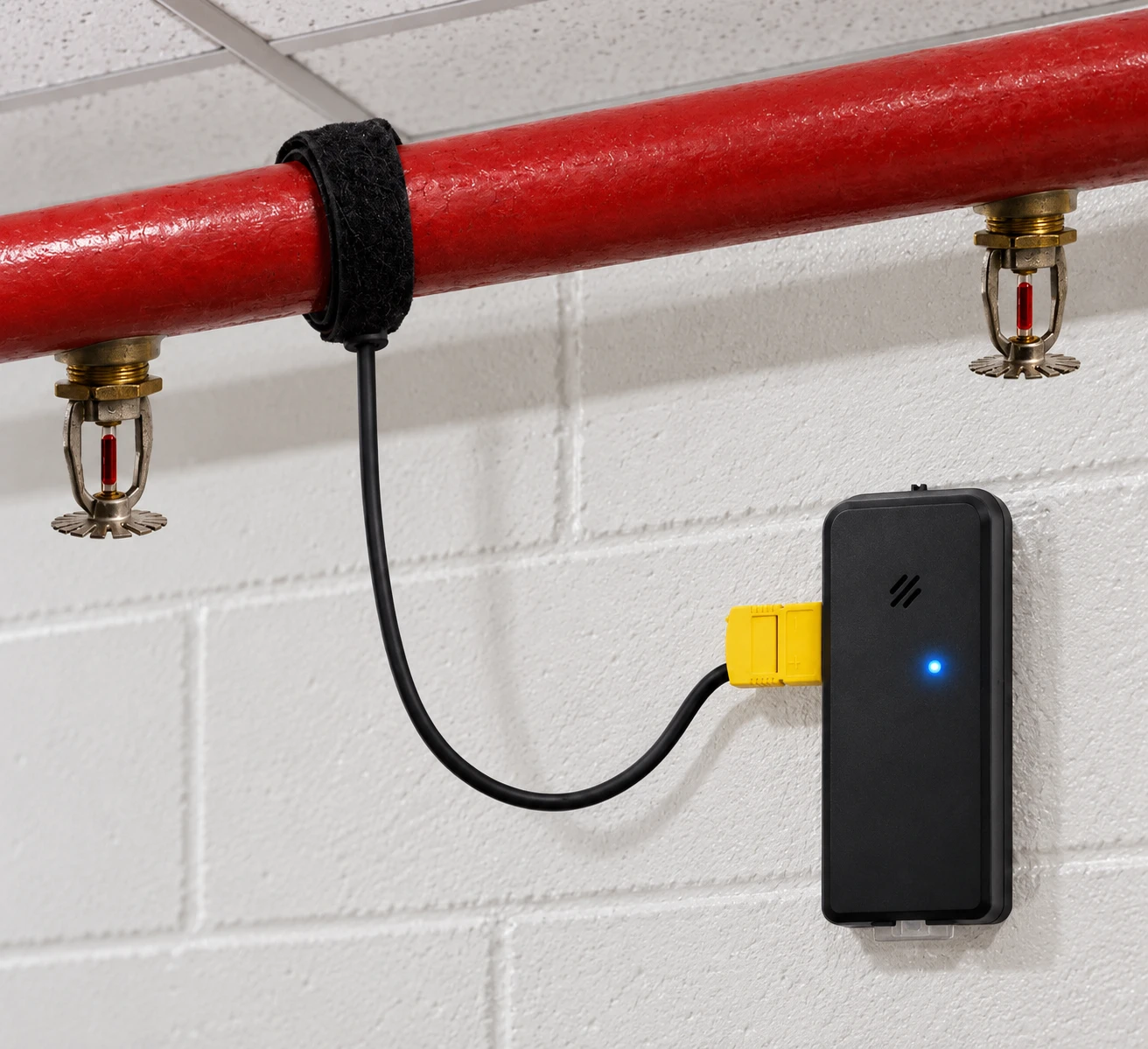
- The Temp Stick: a small black sensor about the size and shape of a Twinkie, usually mounted on a wall with its bracket.
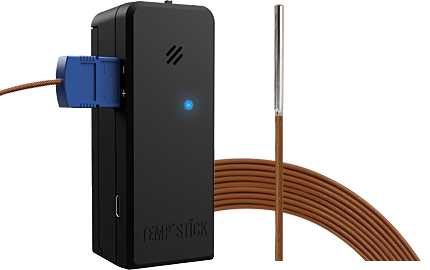
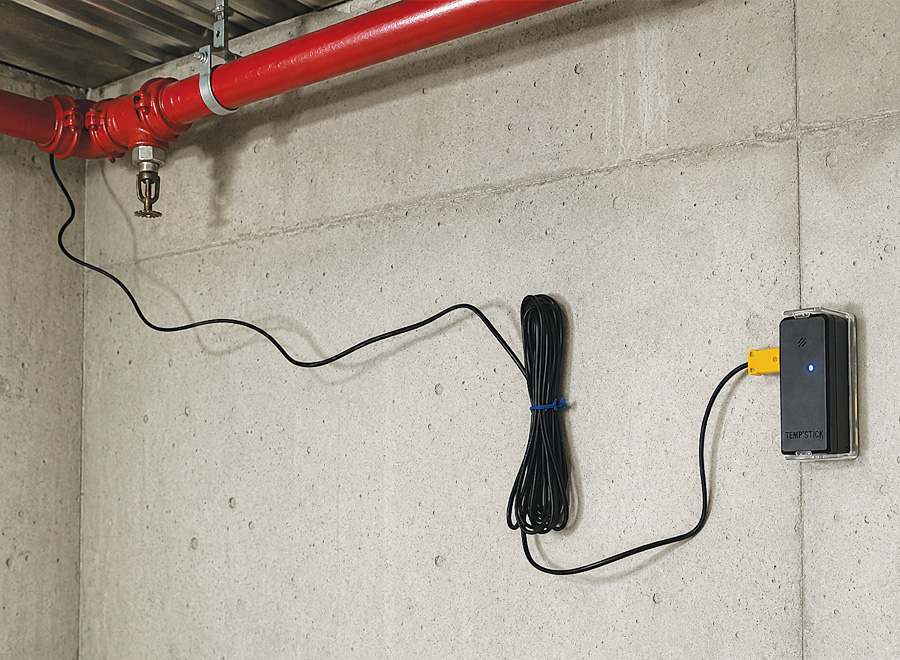
- The pipe strap: a thin cable (up to 20 feet long) runs from the Temp Stick to a black Velcro strap wrapped around a sprinkler pipe. A pipe strap alert is about the pipe at that strap, so follow the cable.
Where they’re usually placed
Sensors go where sprinkler pipes are most likely to get cold, so start your search in places like these:
Riser and mechanical rooms
Near the sprinkler riser, fire pump or backflow piping, often on an exterior wall.
Exterior stairwells and entries
Where branch lines or standpipes pass by doors to the outside.
Loading docks
Near overhead doors that stay open for deliveries.
Attics and ceiling spaces
Above ceilings, near rooflines, and along unheated outside walls.
Narrow it down in the app
Tap  on the alert to open the sensor’s page. It shows:
- its name and sensor ID, to match against the label on the Temp Stick;
- the WiFi network it’s connected to, which can point you to the right building or floor on a large site;
- when it last checked in, and its battery.
Make it easier next time
Found it? Give it a name the next person can find without help, like “Building 2 – Loading Dock riser”. Open the sensor in the app and change its name; every alert from then on uses the new name.
Still can’t find it?
- Ask in the alert’s chat. Someone on your team may know exactly where it is.
- Ask whoever installed it, or the person who looks after the building.
- Were you sent a shared link? Ask the person who shared the alert with you.
- Call us. Our support team can look up the sensor’s details for you, like its ID, WiFi network and last check-in. We can’t see where it’s placed, but those details often narrow it down.