


Using the Alert Resolution Center
The Alert Resolution Center makes sure every alert gets a person and a reason. When a sensor goes out of range, its alert stays open until someone on your team takes it, deals with the cause and closes it with what happened. Your team always knows who is on it, and every alert leaves a clear record.

Where to find it
Open  in the Temp Stick app or website, then the
 tab. Every alert that needs a response is listed there, newest
first. The same alert also shows at the top of your dashboard, and reaches you by text, email or push
notification, depending on how the alert is set up. Tapping a push notification opens the app on the alert.
tab. Every alert that needs a response is listed there, newest
first. The same alert also shows at the top of your dashboard, and reaches you by text, email or push
notification, depending on how the alert is set up. Tapping a push notification opens the app on the alert.
The alert card
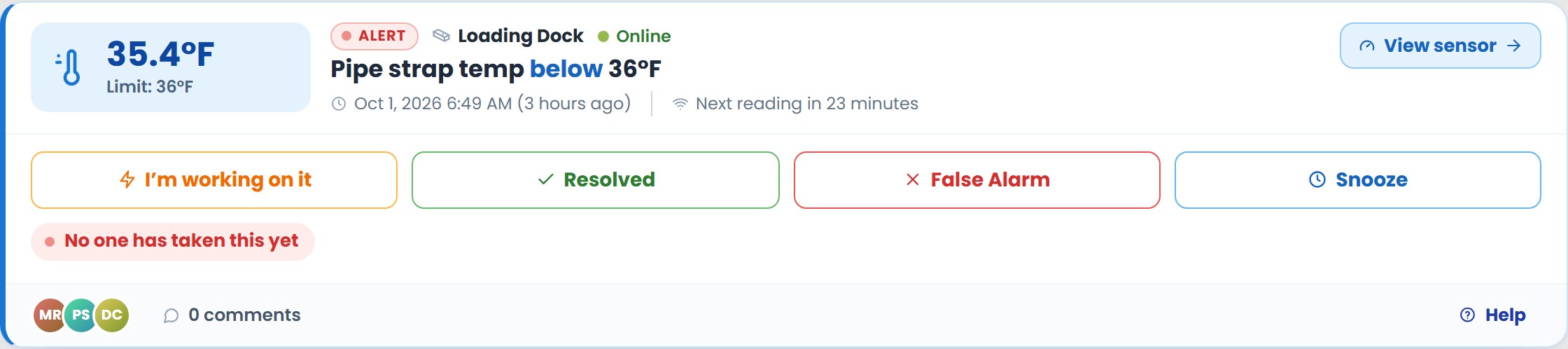
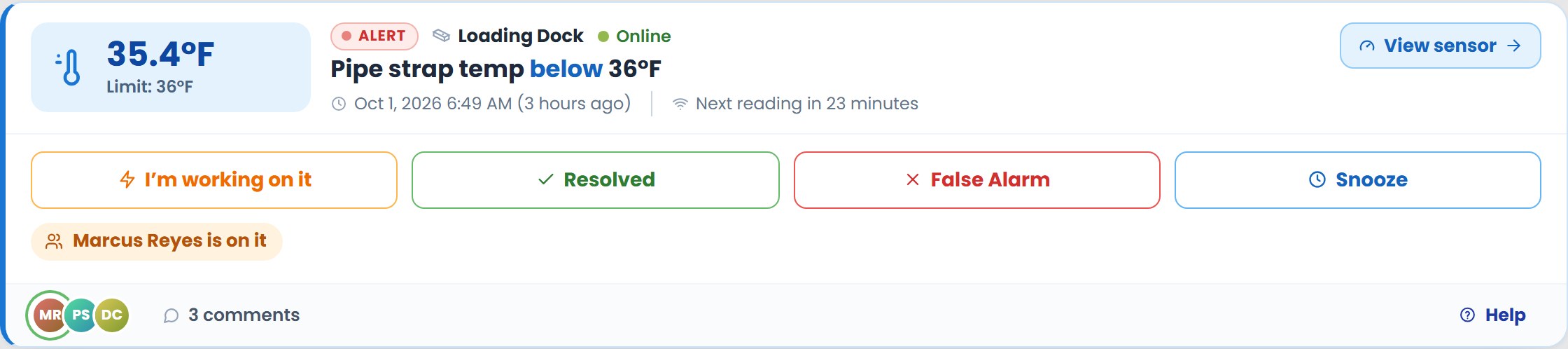
- The reading
- The big number (35.4°F here) is the latest reading, with the limit the alert is set at under it. Blue means it went below the limit, red means above.
- The sensor
- Its name (usually where it is) and whether it’s online.
 opens its page. How to find the sensor
 - What the alert watches
- “Pipe strap temp below 36°F”: the reading, which way, and the limit. Under it, when the alert triggered and when the sensor checks in next.
- The buttons
 ,
,  ,
,
 and, if your organization allows it,
 .
.- Who’s on it
- “No one has taken this yet” until someone does, then their name.
- The bottom row
- Everyone the alert went to, the comments, and
 . Administrators
also see
. Administrators
also see  .
.
Take it
Tap as soon as you’re handling the alert.
Everyone on it now sees your name (“Marcus Reyes is on it”), so nobody else drives over for the
same thing, and the chat records who took it and when.
- More than one person can work on the same alert.
- Plans changed? Tap it again to step back, so the team knows it needs someone else.
The details: readings, people and chat
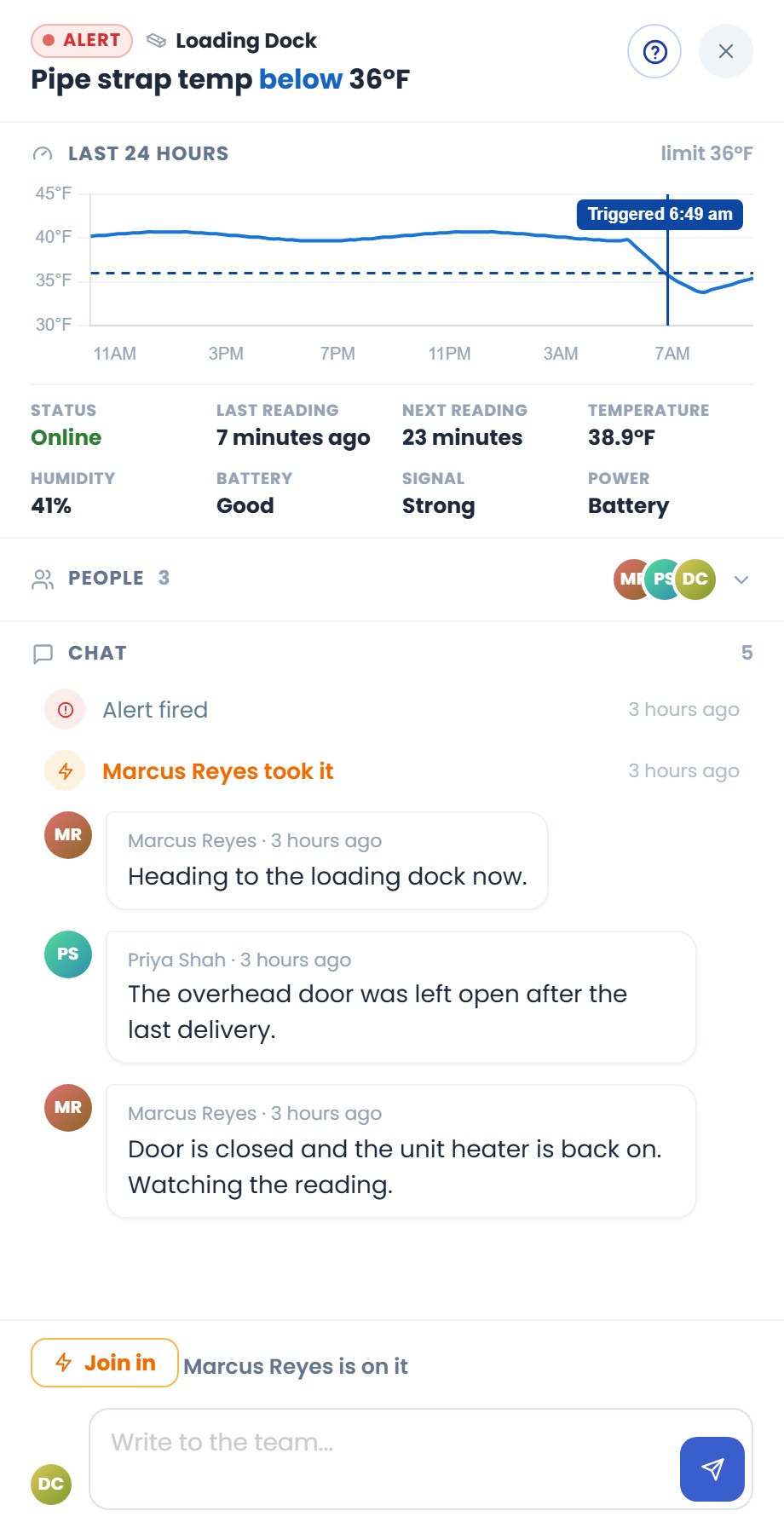
Tap anywhere on the card to open its details.
- The chart
- The reading over the last day (or longer, for an older alert). The dashed line is the limit; the line down the chart marks when the alert triggered.
- The sensor now
- Status, last and next reading, temperature, humidity, battery, WiFi signal and power.
- People
- Everyone the alert was sent to: who has seen it, who’s working on it, and who’s looking at it right now.
- Chat
- The alert’s record, in order: when it fired, who took it, when it came back in range, your team’s messages, and how it was closed. Use it to keep everyone posted.
Close it
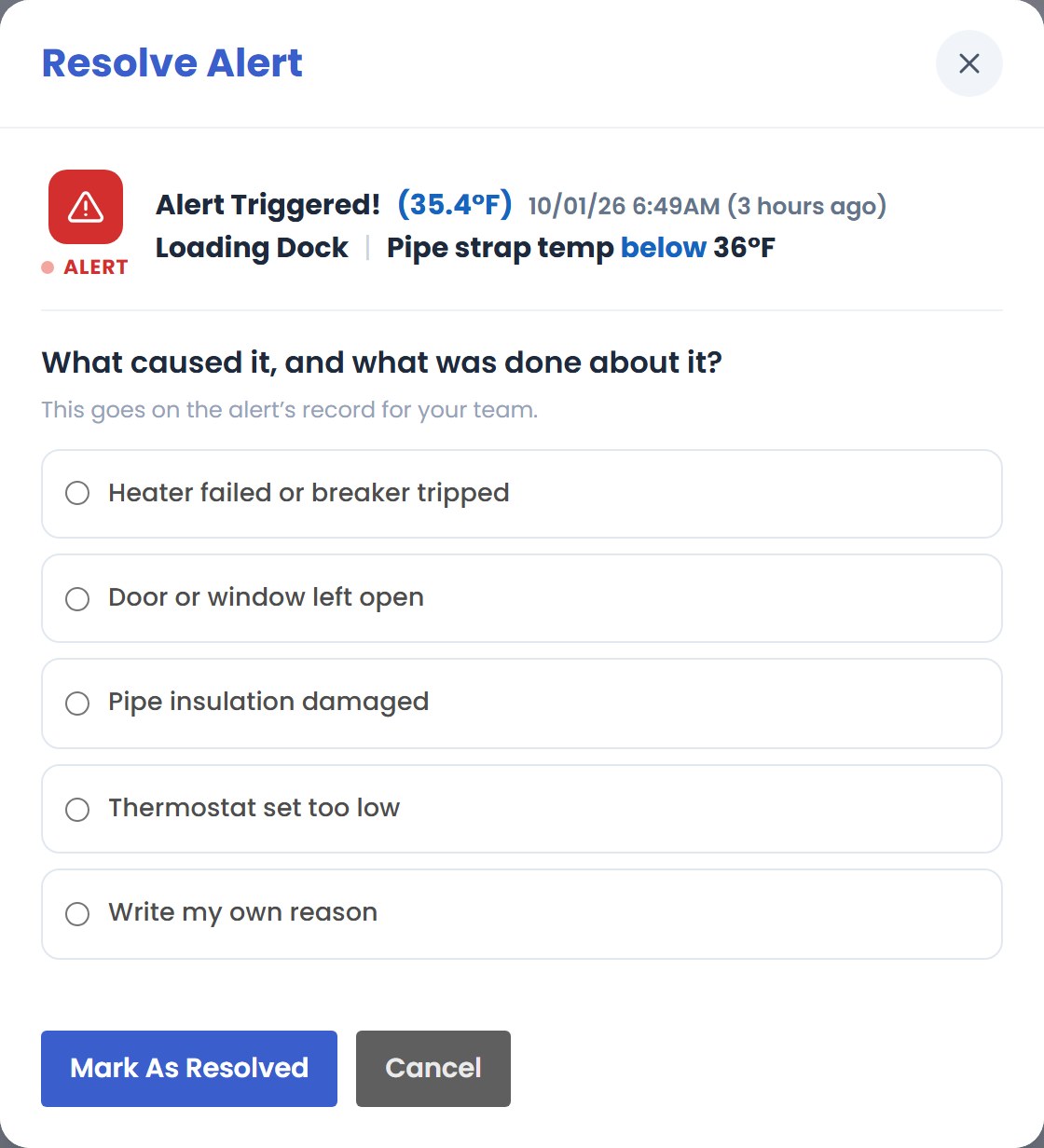
Once the cause is dealt with, close the alert with what happened:
- Pick Resolved or False Alarm.
when something really happened and you dealt with it.
when the reading wasn’t real, like a strap that came
loose from the pipe.
- Choose what caused it. Pick one of the reasons your organization set up, or write your own.
- Add details if they help. “Closed the overhead door and reset the heater” tells the next person a lot.
- Confirm. The alert closes for everyone, with your name and reason on its record.
Back in range
If the reading comes back within the limit on its own, the card turns green and says
 . It still needs someone to close it and say what happened:
something caused it (a door left open, a heater that cycled off), and that’s worth knowing next time.
. It still needs someone to close it and say what happened:
something caused it (a door left open, a heater that cycled off), and that’s worth knowing next time.
Closed an alert while the reading is still out of range? It stays on the list for 24 hours, marked
“Resolved but still out of range”, then moves to  .
If the reading comes back in range and goes out again later, that’s a new alert.
.
If the reading comes back in range and goes out again later, that’s a new alert.
Snooze
If your organization allows it, pauses your own notifications about one
alert for a set time, like 15 minutes or an hour. The alert stays open for the rest of your team, and you’re
told when the snooze ends. Some organizations limit how often an alert can be snoozed, or turn snoozing off.
Bring in outside help
Bring in outside help with a simple link. No app or logins needed.
Calling a sprinkler contractor or a plumber? An administrator on the account can share one alert with them:
- Tap on the alert. Say who it’s for (only your team sees
this), whether they can respond or only view, and how long the link works, from 1 hour to 7
days.
- Send the link. Copy it, text it or email it.
- They open it and enter their name. They see this one alert, its readings, who’s on it and the chat, and nothing else on your account. With a respond link they can take it, chat and close it.
A link stops working when its time is up, when you turn it off, or an hour after the alert is closed.
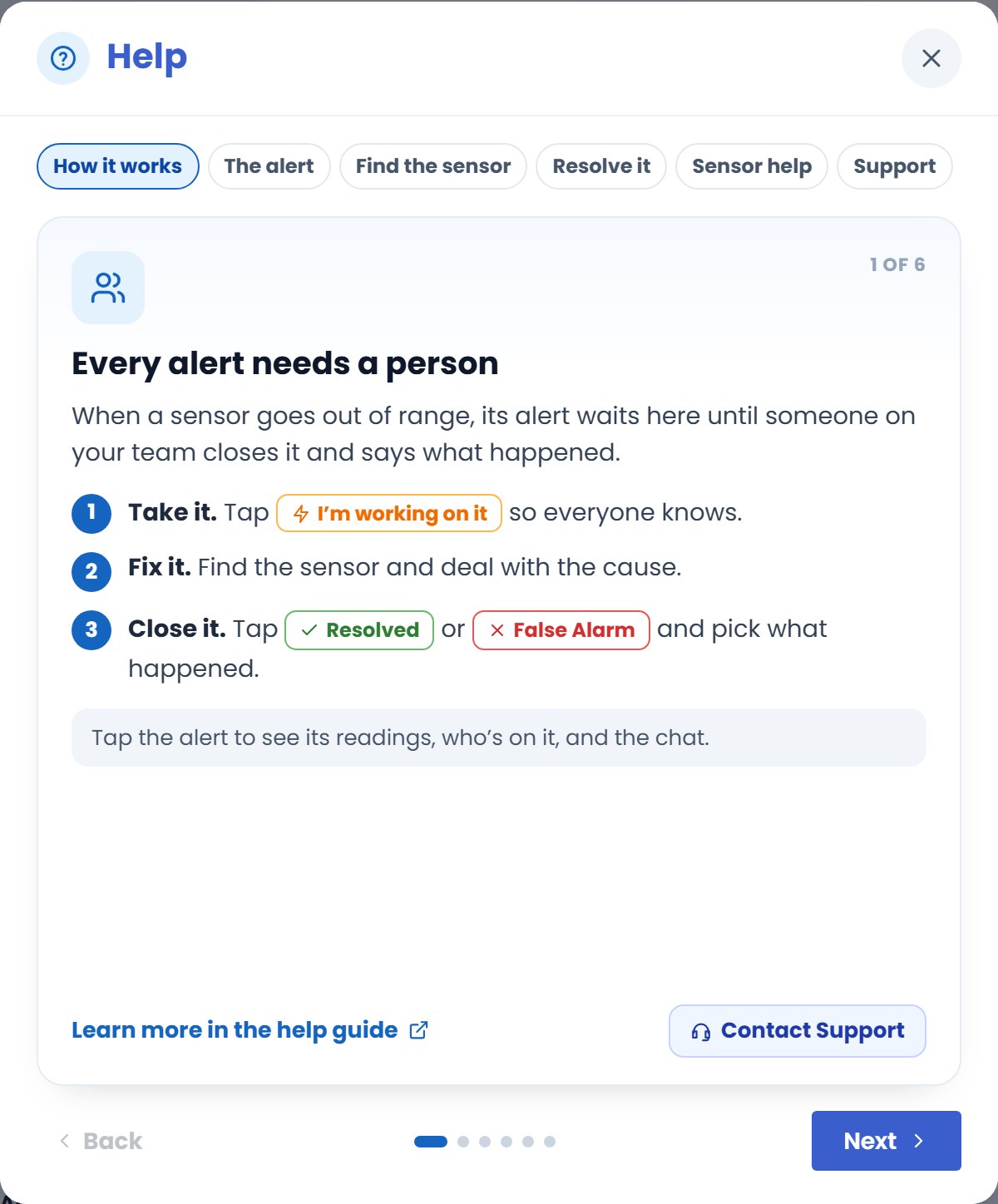
Help in the app
Tap on any alert for a few quick cards about that alert: how the
Resolution Center works, reading the alert, finding the sensor, resolving it, common sensor questions, and how
to reach our support team. Each card links back to the full guide here.